News · 4 min read
New login methods: sign in with Google, Apple, or a passkey
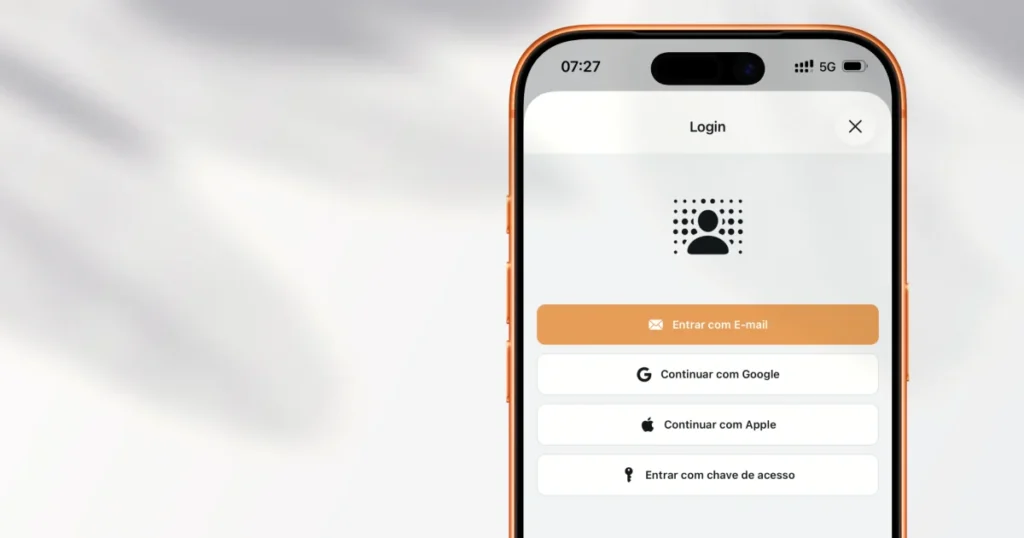
The Agenda1 login screen now has three new buttons. In addition to email verification codes, you can sign in with your Google account, Apple account, or a passkey stored on your device.
The goal is simple: fewer steps to get in. No waiting for emails, no typing codes. One tap and you’re in.
Sign in with Google or Apple
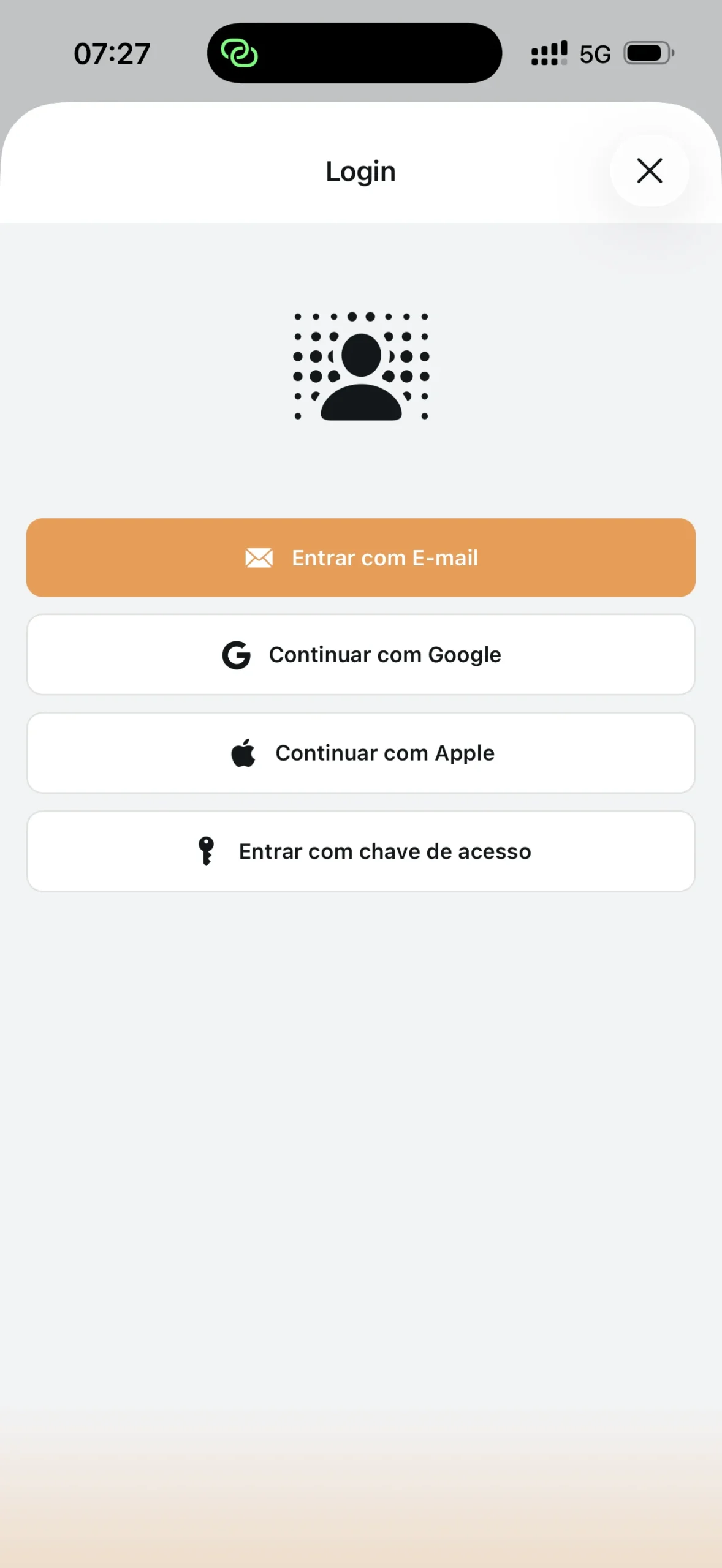
If you already have a Google or Apple account on your phone, this is the fastest way in.
On the login screen, tap “Continue with Google” or “Continue with Apple”. Your device shows the authorization screen — select your account and confirm. Done.
The first time, Agenda1 creates your account automatically using the email from the account you chose. From then on, login takes a single tap — no forms to fill out.
If you already had an Agenda1 account with the same email, the accounts are linked automatically. Your schools, profiles, and settings remain exactly as they were.
Sign in with a passkey
Passkeys are an authentication method that uses your device’s biometrics or PIN. Instead of typing a password or waiting for an email code, your phone confirms it’s you — via Face ID, fingerprint, or device PIN.
On the login screen, tap “Sign in with passkey”. Your device shows the authentication prompt (Face ID on iPhone, biometrics on Android, or Windows Hello on desktop). Confirm, and you’re logged in.
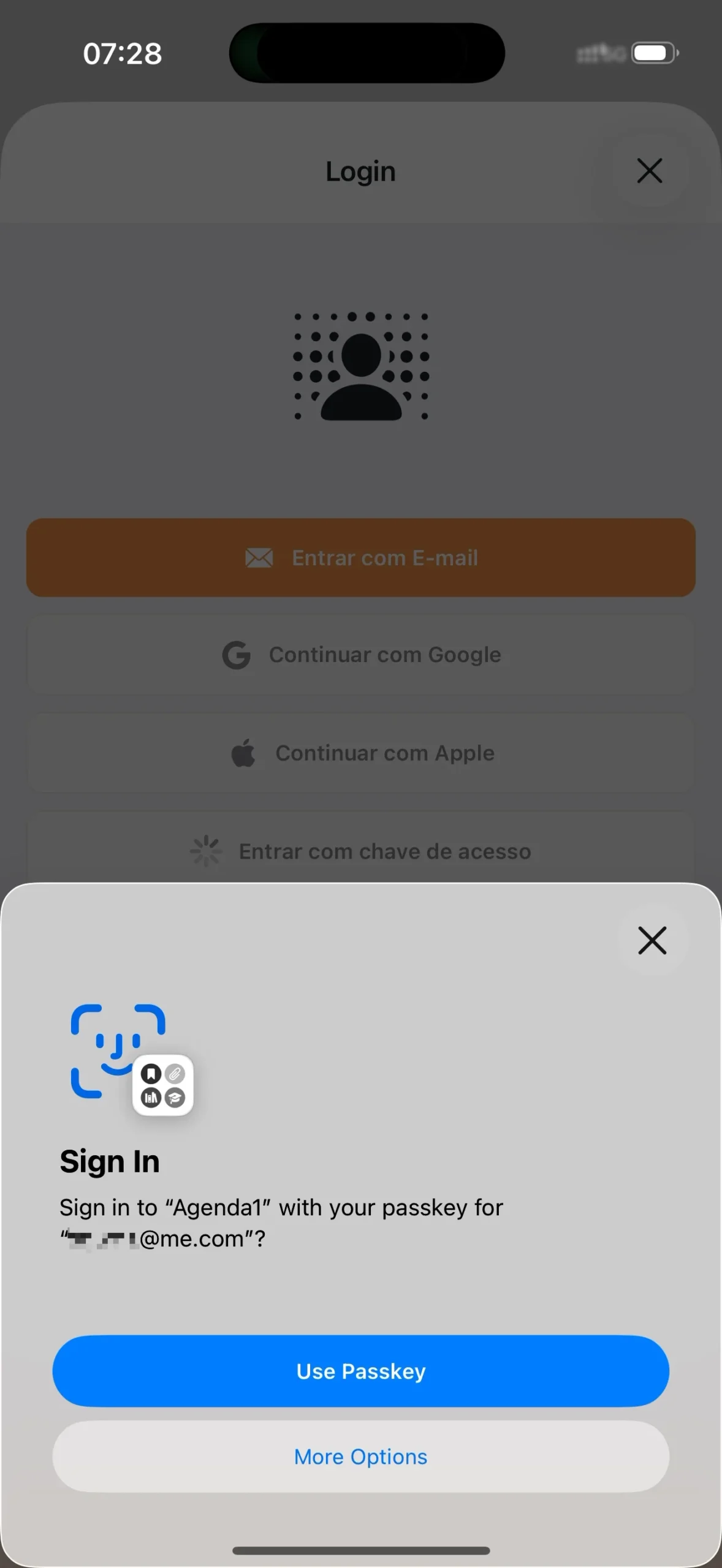
To use this method, you need to have registered a passkey first. If you don’t have one yet, the app lets you know and suggests signing in with another method first.
How to register a passkey
You register your passkey after you’re already logged into the app. It takes about 10 seconds:
- Sign in with any method (email, Google, or Apple)
- Go to Settings (gear icon in the top corner)
- Tap Profile
- Tap Passkeys
- Tap “Add passkey”
- Your device asks for biometric confirmation (Face ID, fingerprint, or PIN)
- Done — your passkey is registered
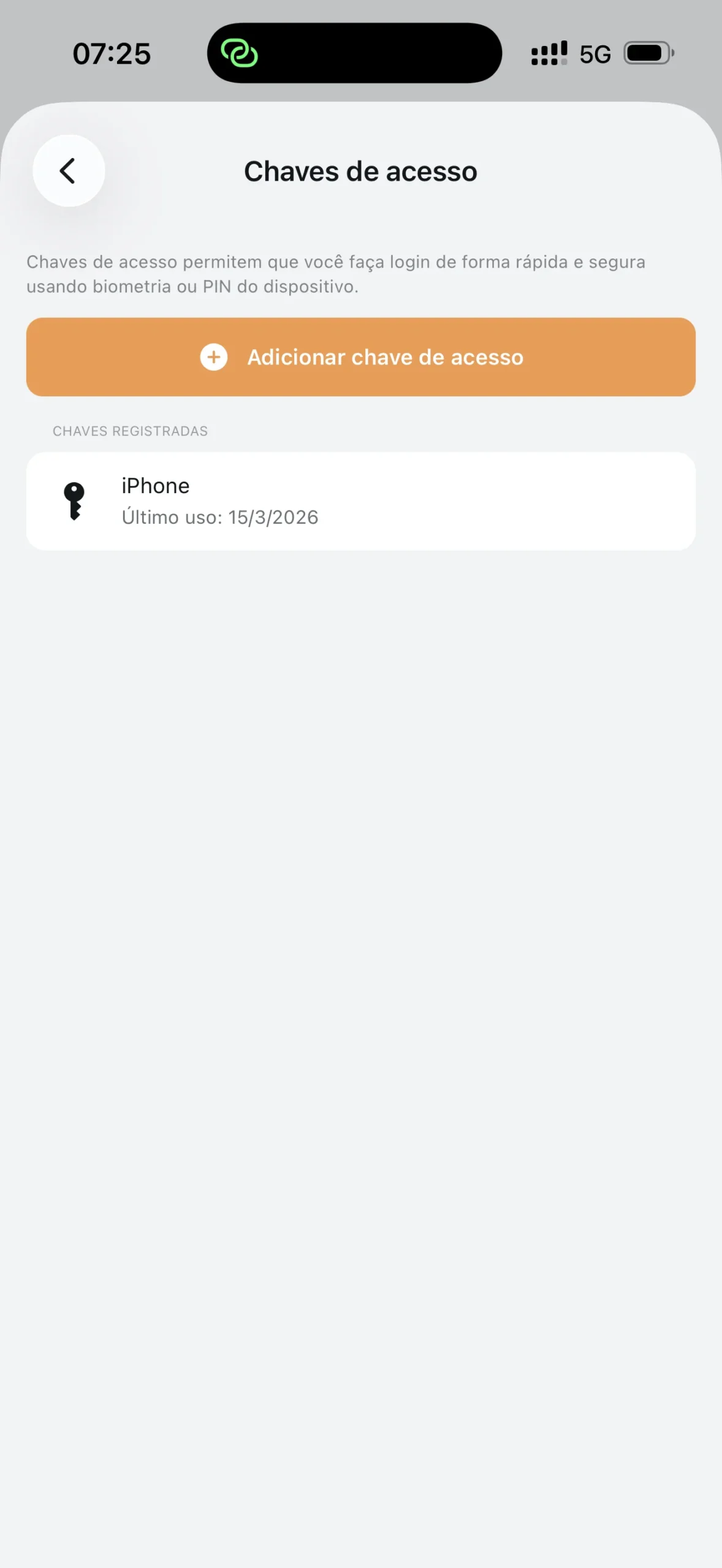
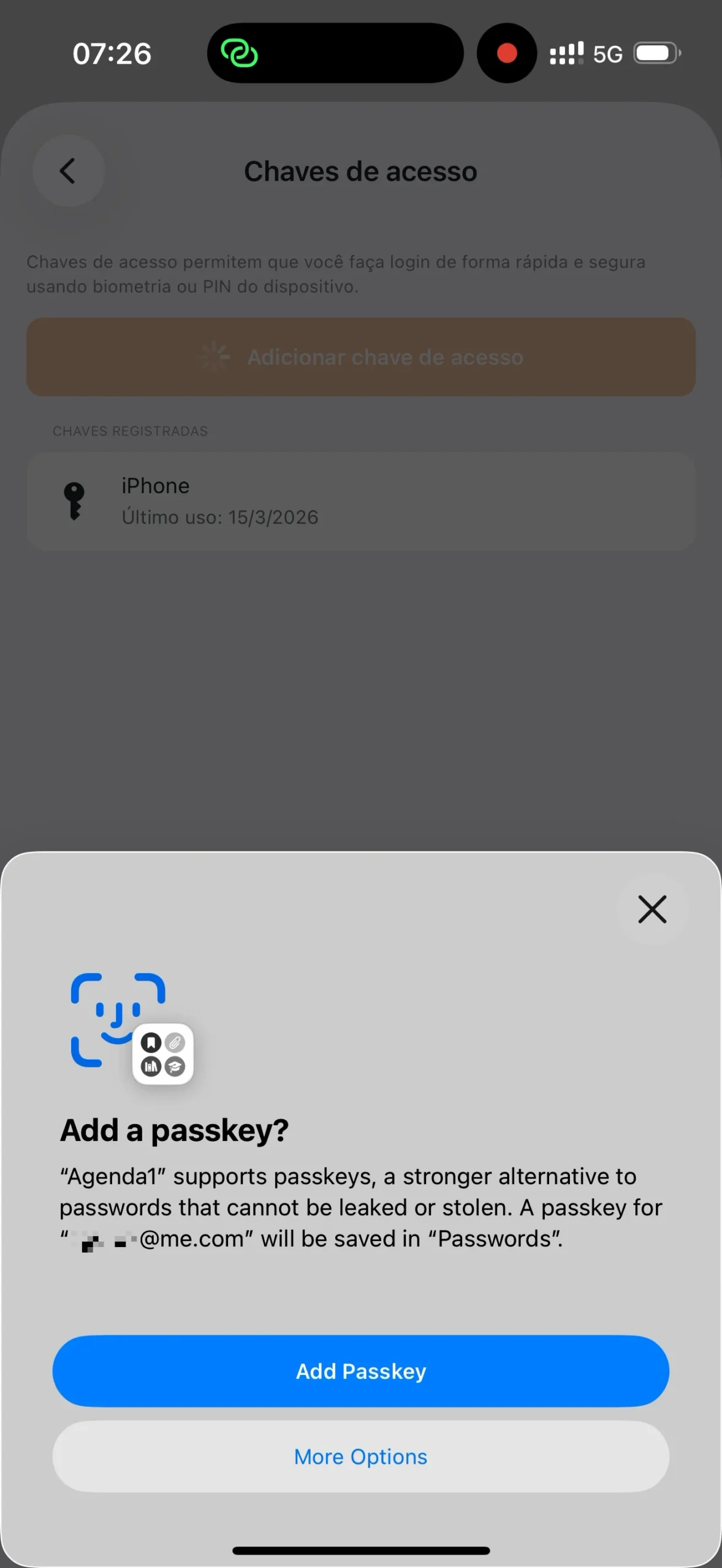
From now on, just tap “Sign in with passkey” on the login screen and confirm with your face or finger. No email, no code, no password.
You can register passkeys on more than one device. If you use Agenda1 on both your phone and computer, register a passkey on each.
Managing registered passkeys
On the same Passkeys screen in settings, you can see all your registered passkeys. Each entry shows:
- Device name — detected automatically (e.g., “Maria’s iPhone”, “Chrome on Windows”)
- Last used — the date the passkey was last used to sign in
To remove a passkey, tap on it and confirm the deletion. If you lost or replaced your phone, remove the old passkey and register a new one on your current device.
Email login still works
If you prefer to receive a verification code by email, nothing has changed. The “Sign in with Email” button is still on the login screen, in the same place. The new methods are additional options — they don’t replace what was already there.
Summary
Agenda1 now offers four ways to sign in:
- Email — verification code sent to your inbox
- Google — one-tap login with your Google account
- Apple — one-tap login with your Apple account
- Passkey — device biometrics or PIN, no typing needed
To register a passkey: sign in → Settings → Profile → Passkeys → Add.
Download Agenda1 for free at agenda1.app. If you already use the app, update to the latest version to see the new buttons on the login screen.
To learn how to connect to a school, see the guide for teachers or students.