Guides · 5 min read
How teachers connect to a school using QR Code or invite link
Your school is set up on Agenda1 — agendas created, classes registered, teachers added, timetables defined. If you followed the setup guide, everything is ready. The most important step remains: getting the teachers into the system.
The good news: a teacher connects to the school in under 30 seconds. There are two ways — scan a QR Code or type the school code manually. In both cases, the teacher needs just one piece of information: their Teacher ID, the one the administrator set up during configuration.
Here is the full process, from the administrator’s side and the teacher’s side.
How the administrator shares the invitation
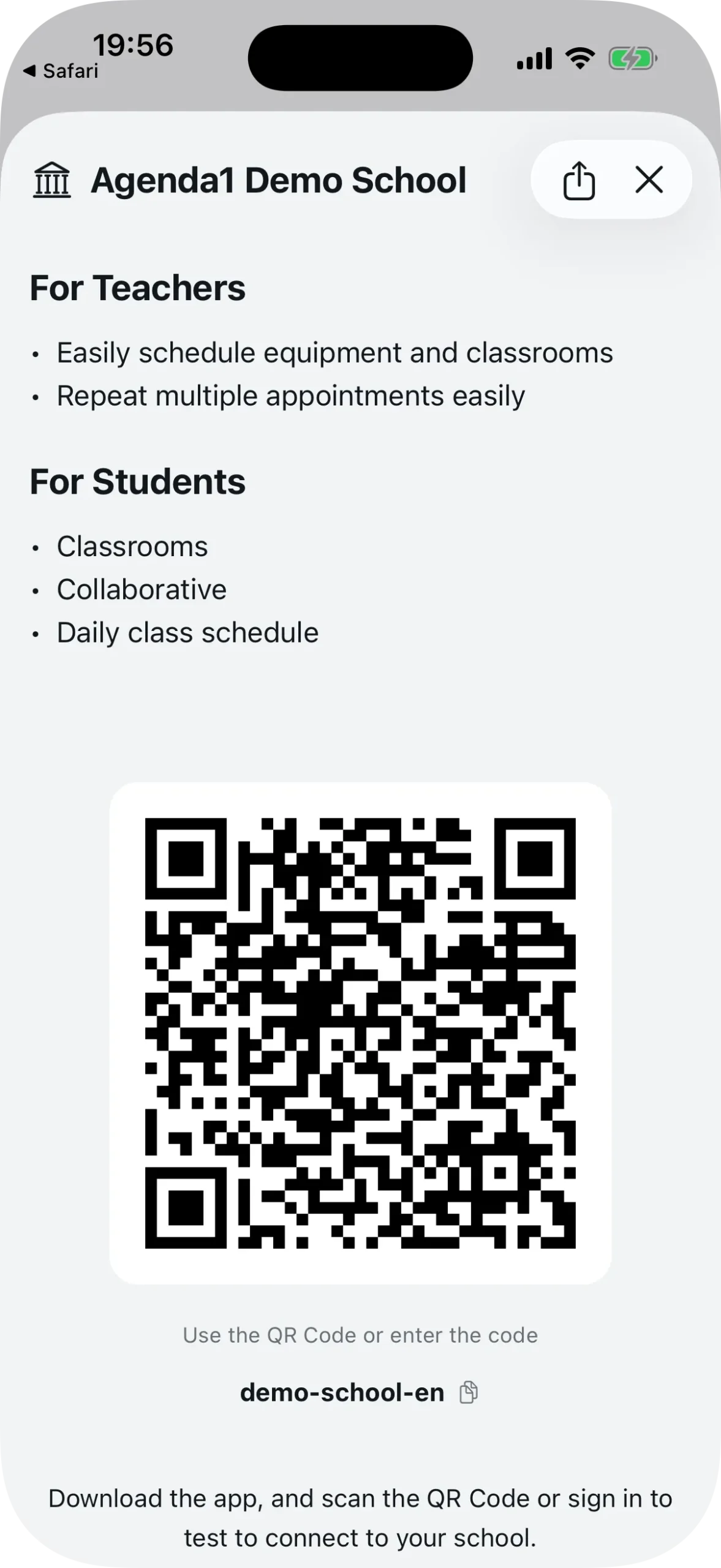
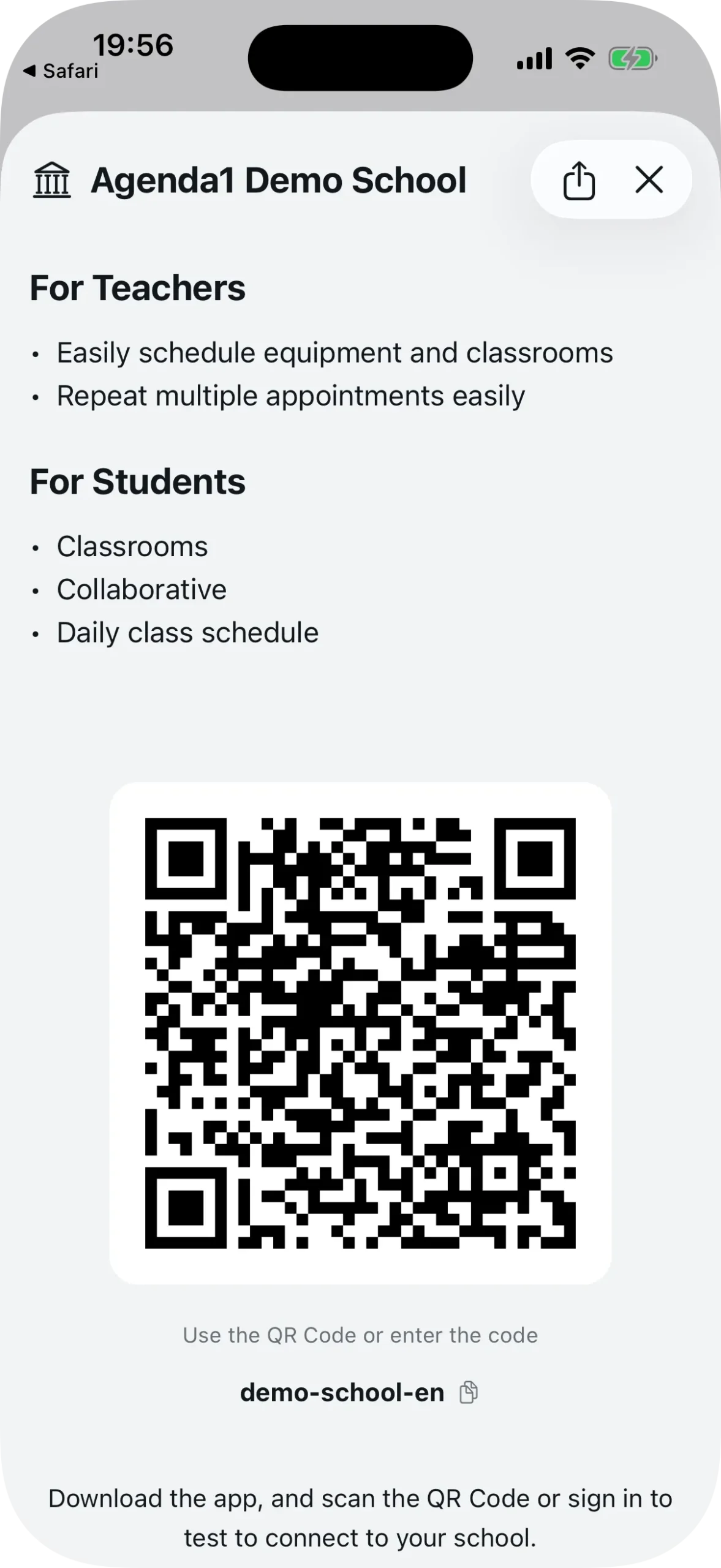
In the admin dashboard, tap the school name (below the agenda carousel) to open the details screen. There you will find:
- A large QR Code that any teacher can scan with their phone
- The school code (e.g.
demo-school-en) for those who prefer to type it - A button to copy the invite link — tap the code or the copy icon next to it
The copied link follows the format schools.agenda1.app/{school-code}. When someone opens this link on their phone, Agenda1 opens directly to the connection screen with the code already filled in.
You can also send the invitation via WhatsApp, email, or any other app using the share button at the top of the screen.
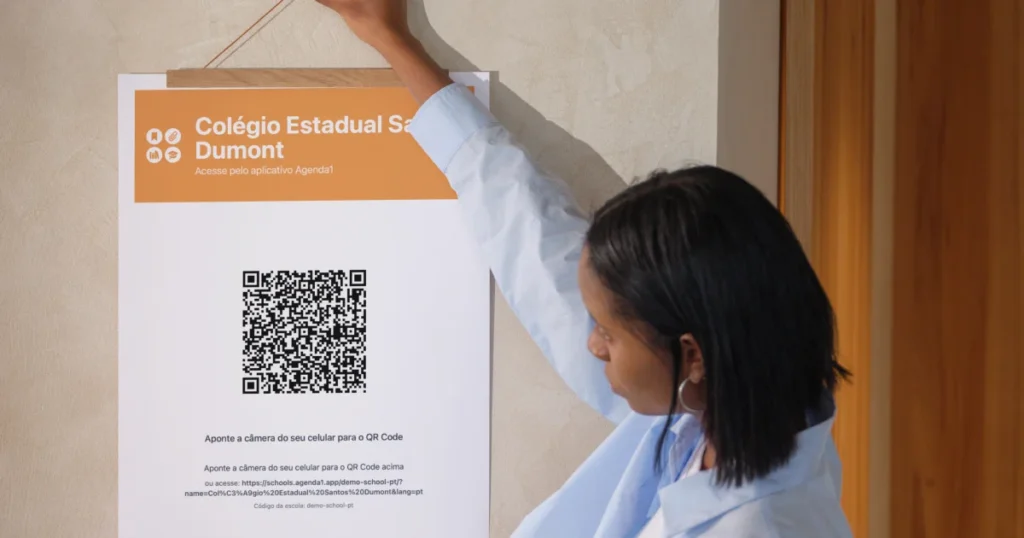
A practical tip: print the QR Code and post it in the staff room. At the next staff meeting, ask everyone to scan it. It takes half a minute.
The teacher opens Agenda1
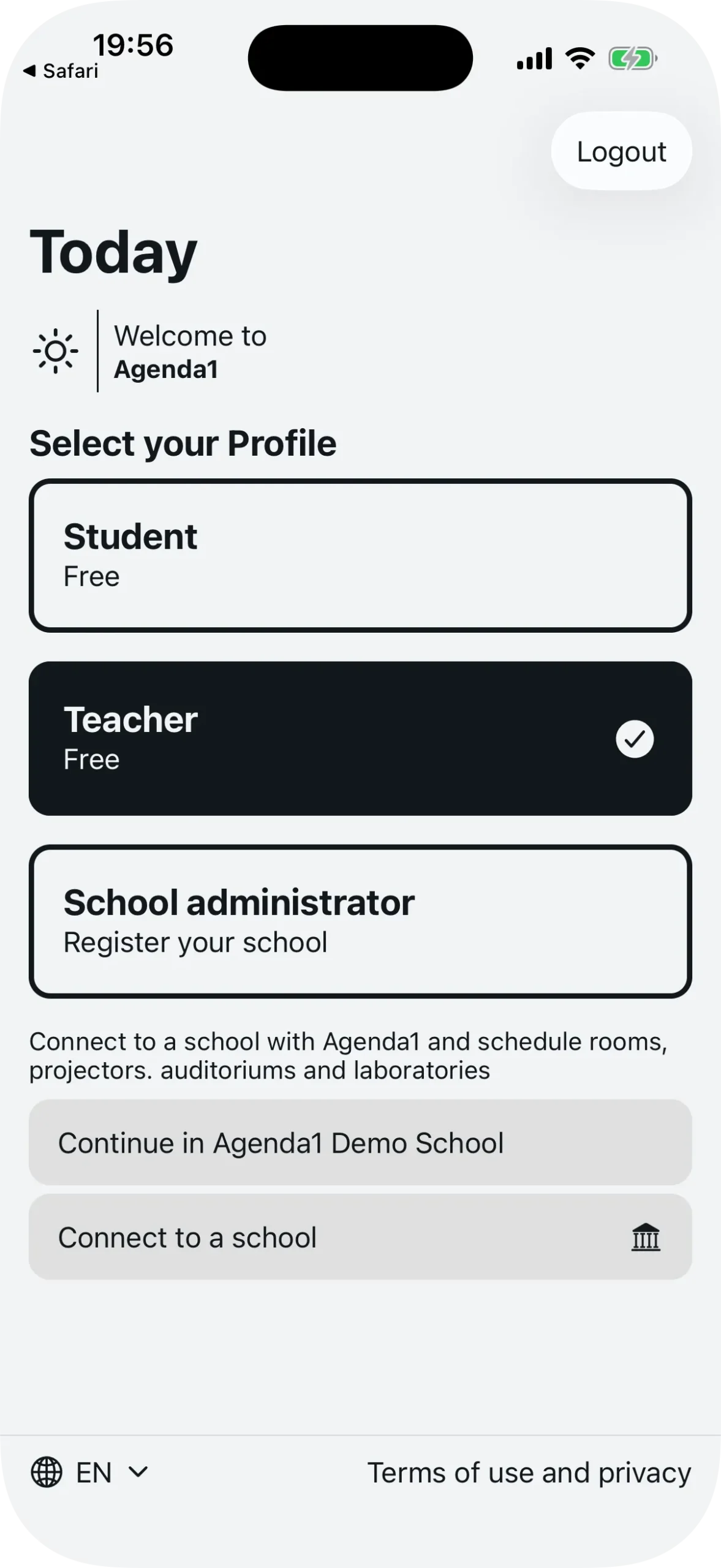
On the teacher’s side, the first step is to open Agenda1 and select the Teacher profile on the home screen. The app shows the description: “Connect to a school with Agenda1 and schedule rooms, projectors, auditoriums and laboratories.”
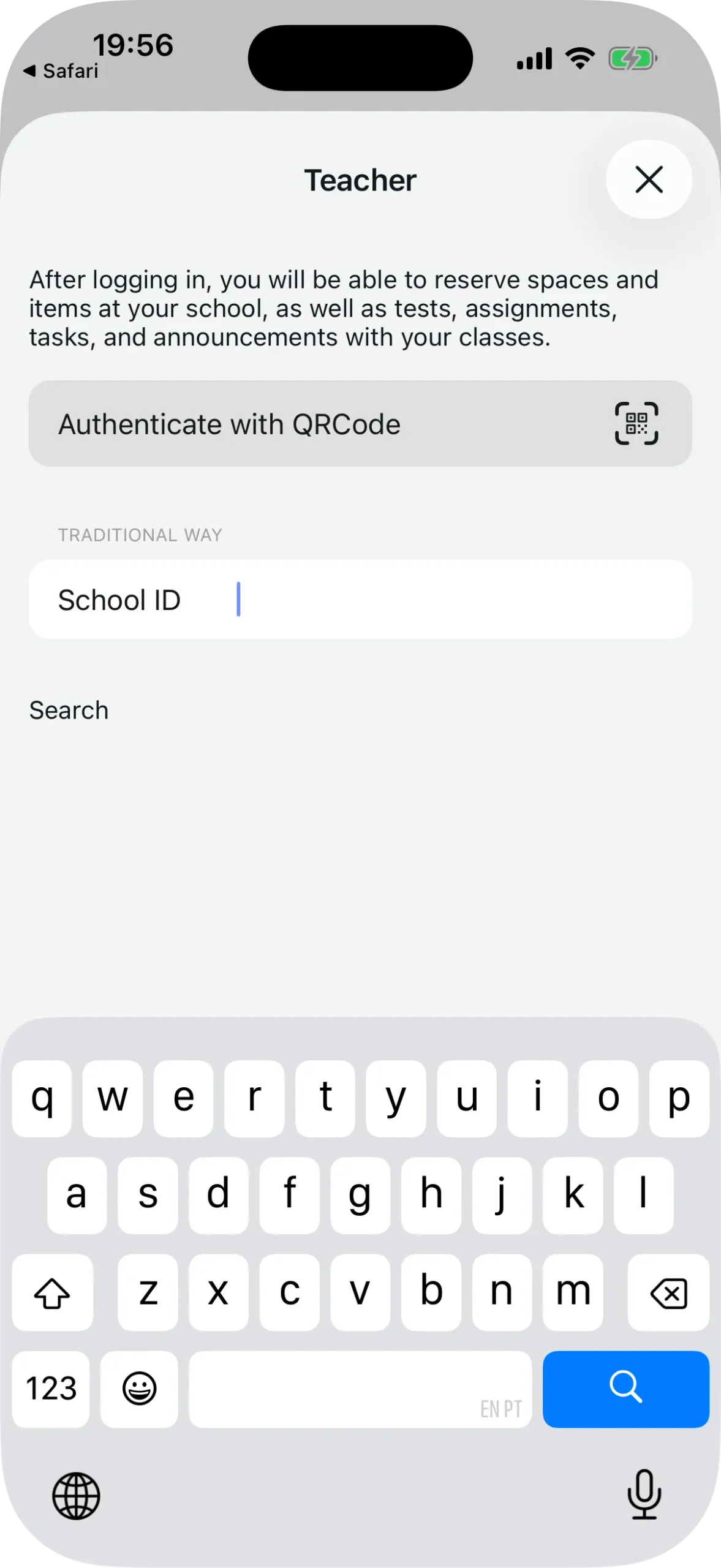
Tap “Connect to a school” to start the connection process. The app opens the onboarding screen with two options: scan a QR Code or enter the code manually.
Method 1: Scan the QR Code
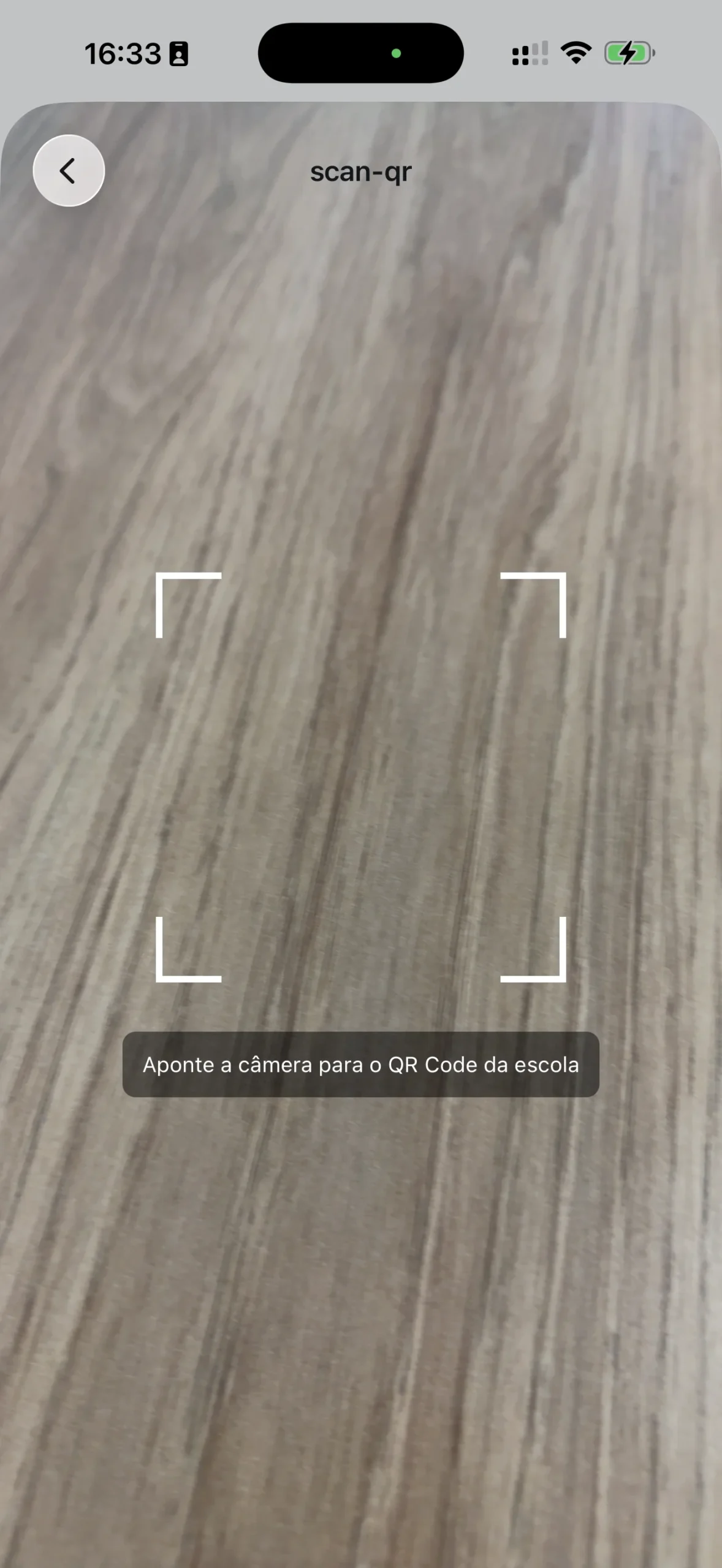
On the onboarding screen, the first option is “Authenticate with QRCode”. Tap the button to open the phone’s camera. The screen shows the instruction: “Point the camera at the school’s QR Code.”
Point at the printed QR Code or the administrator’s screen. The app recognizes the school code automatically and jumps straight to the confirmation screen — no typing needed.
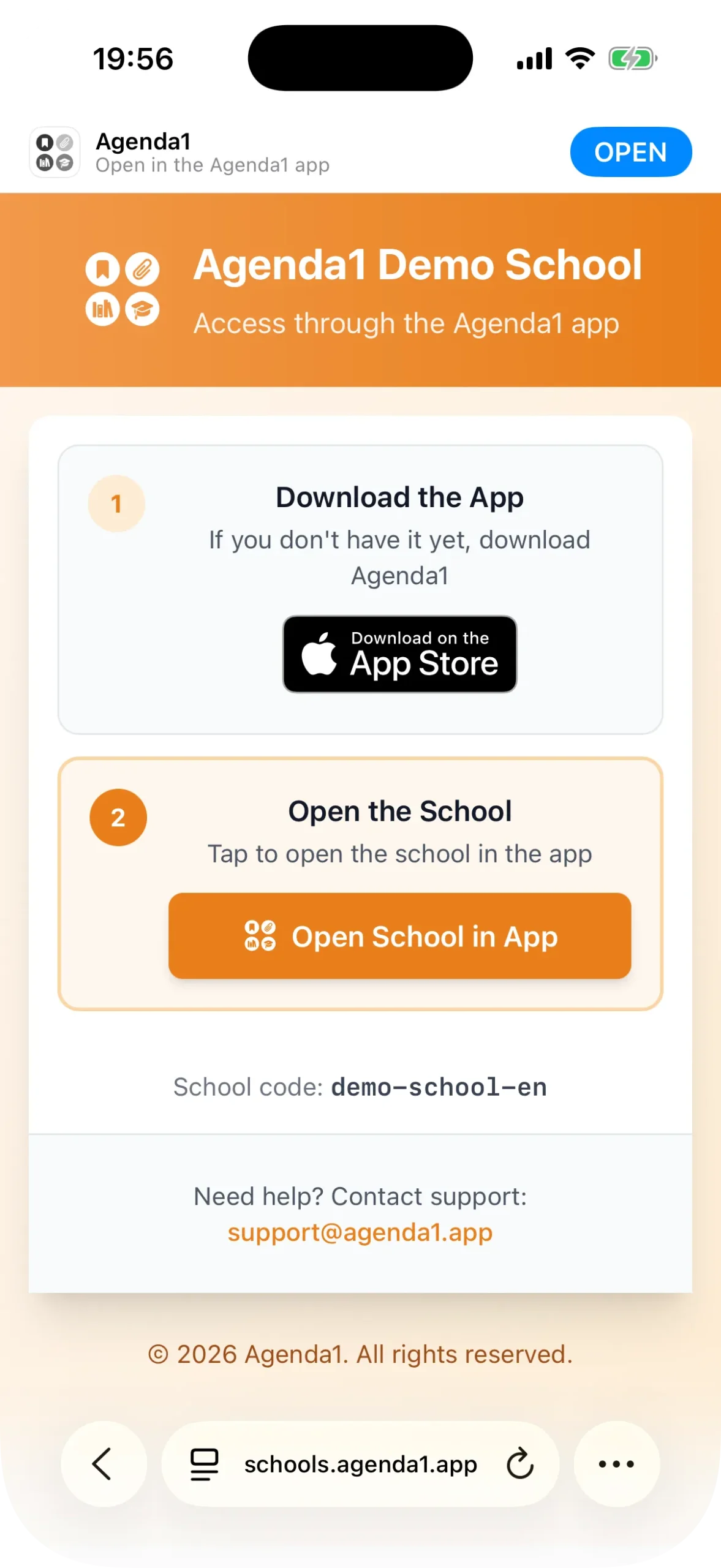
If the teacher scanned the QR Code with the phone’s native camera (outside Agenda1), the link opens the schools.agenda1.app/{school-code} page in the browser. This page shows the school name, buttons to download the app from the App Store and Google Play, and the option to open Agenda1 directly.
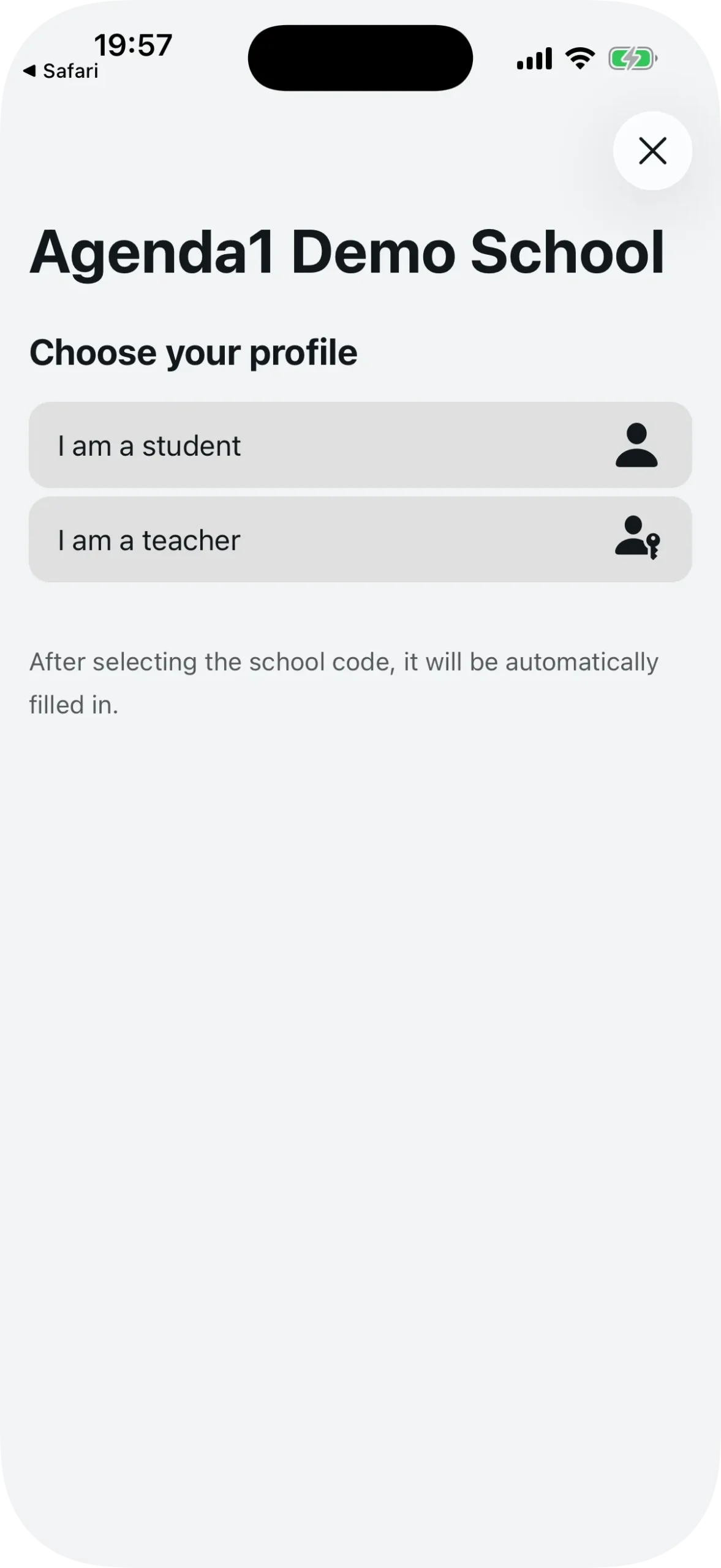
When tapping “Open School in App”, the teacher chooses their profile (teacher or student) and the school code is automatically filled in on the onboarding screen.
Method 2: Type the code manually
If the teacher received just the code by message, the Traditional Way option works.
On the same onboarding screen, below the QR button, there is the “School ID” field. The teacher types the school code (e.g. demo-school-en) and taps “Search”.
If the code exists, the app finds the school and moves to the confirmation screen. If not, the app reports that the school was not found — it is worth checking the code with the administrator.
Enter the Teacher ID and connect
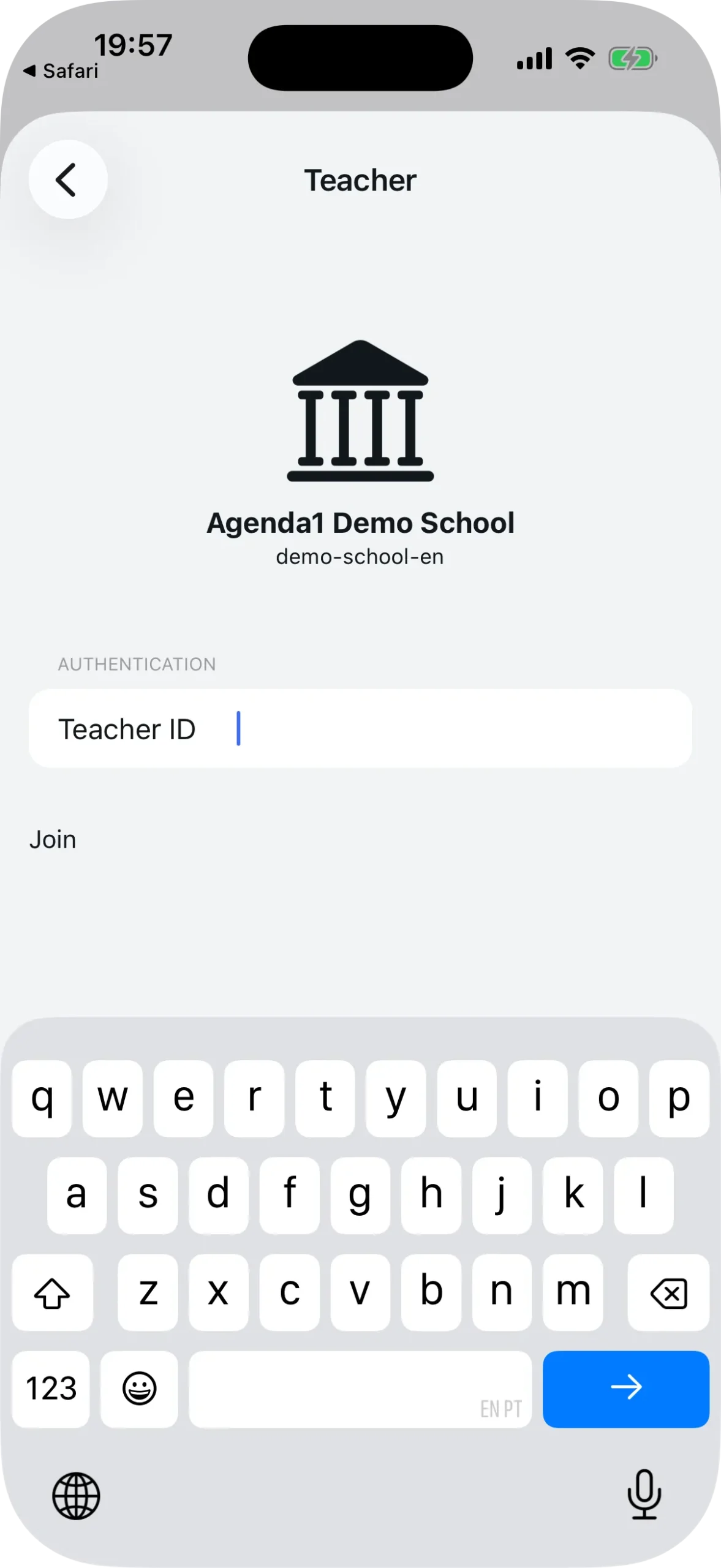
With both methods, the teacher reaches the same screen: the school confirmation. The app shows the school name and code with a large icon.
Below, a field asks for the Teacher ID — the reference code the administrator set during configuration (it can be initials, a staff number, or any code the school defined). The teacher types their code and taps the button to join.
If the code is correct and available, the connection happens instantly. The teacher is redirected to the teacher dashboard, ready to make their first booking.
What if the Teacher ID is already linked?
It can happen that the Teacher ID is already associated with another account. In that case, Agenda1 shows the email of the linked account and redirects to the login screen.
The teacher needs to log in with the correct account — the one originally linked to the code. After authentication, the connection is completed automatically.
If the previous account was a guest account, Agenda1 disconnects the old account and frees up the code for the new teacher. This happens without any action from the administrator.
What the teacher sees after connecting
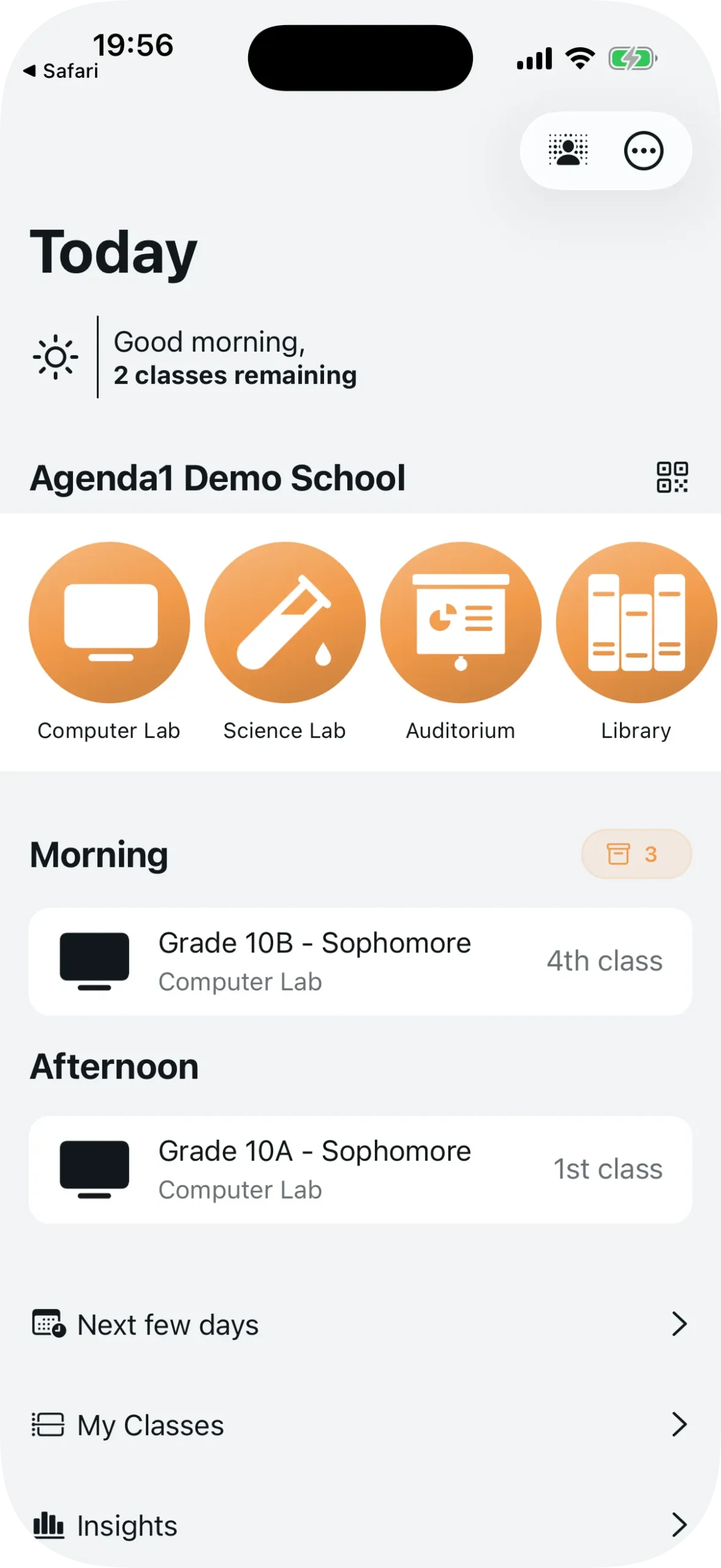
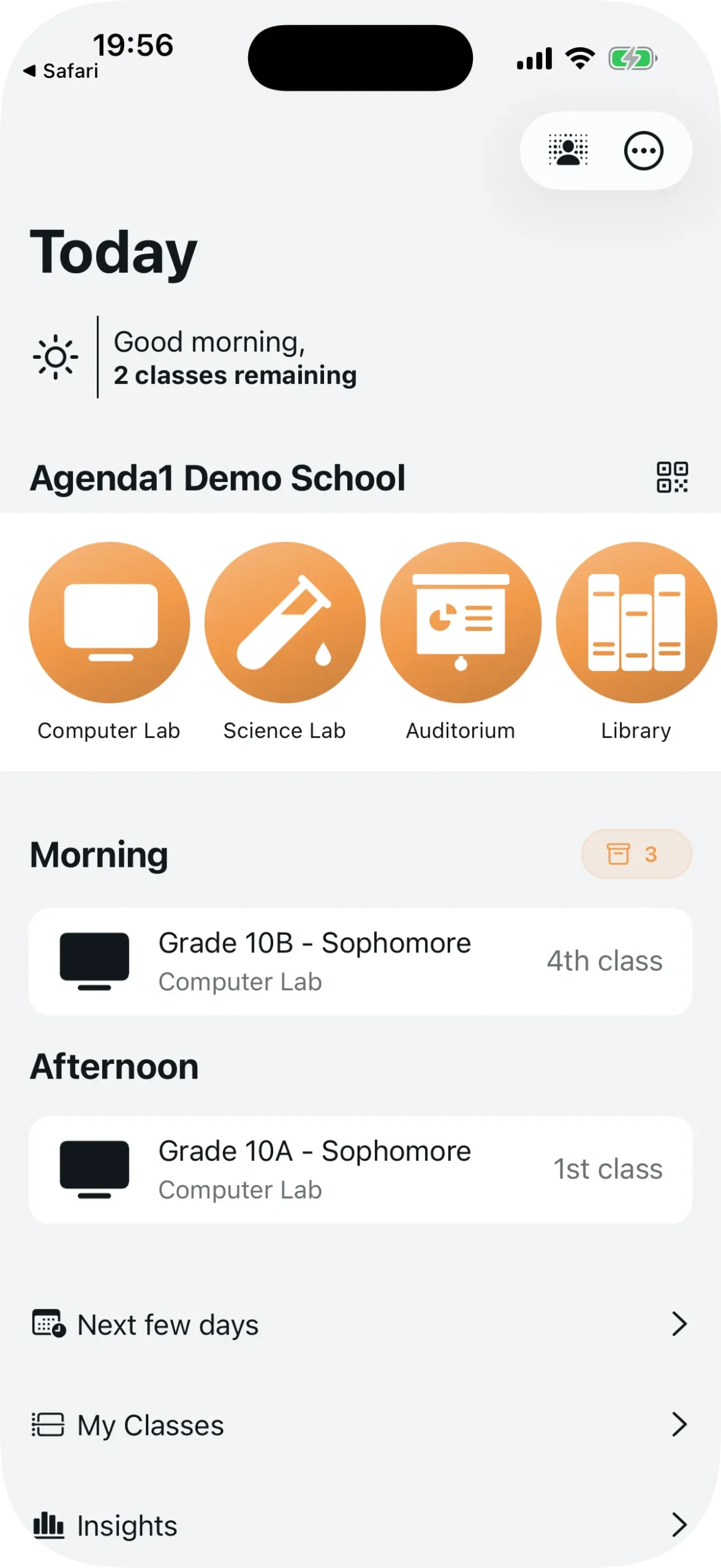
The teacher dashboard shows:
- Today’s bookings, organized by period (Morning, Afternoon)
- The agenda carousel with the school’s shared spaces and their icons
- Quick-access buttons: Next few days, My Classes, Insights, and Invite Teachers and Students
Teachers can also share the school’s QR Code with colleagues. The “Invite Teachers and Students” button opens the same details screen with the QR Code, making it easy to spread the word in the staff room.
Quick summary
For the administrator:
- Register teachers with name and Teacher ID (step 6 of the setup)
- Share the QR Code or school code
For the teacher:
- Open Agenda1 and select the “Teacher” profile
- Scan the QR Code or type the school code
- Enter your Teacher ID
- Done — 30 seconds
Download Agenda1 for free at agenda1.app. Ask your school administrator for the invite QR Code and connect.
For a complete guide to managing bookings, check out how to manage school room bookings.
Agenda1 now also supports login with Google, Apple, and passkeys. To learn about the new methods, see new login methods in Agenda1.